
Your Zoom display name may seem like a very small detail.
Until you join a business meeting and everyone sees:
john123
Galaxy S24
Admin
or maybe even:
Batman.
For a casual call with friends, that probably does not matter.
For a webinar, business meeting, online training session or professional presentation, it can.
If the host needs to know who is joining, using your real first and last name makes everything easier.
Fortunately, changing your Zoom display name is simple.
What Is a Zoom Display Name?
Your Zoom display name is the name other participants see when you join a meeting or webinar.
It does not always have to be identical to the first and last name stored in your account.
That is why someone can have a perfectly normal Zoom account but still enter a meeting under an old nickname, device name or shortened username.
For professional meetings, I recommend keeping it simple:
First name + Last name
For example:
Filip Dorić
It is clearer for the host.
It is clearer for the other participants.
And it simply looks more professional.
Check Your Name Before Joining the Meeting
The easiest solution is to check your name before you enter.
When joining a meeting manually through Zoom, you may have the option to enter the name that will be shown to other participants.
If you see the name field, make sure it contains the name you actually want to use.
Instead of:
filip123
enter:
Filip Dorić
If Zoom offers an option such as Remember my name for future meetings, you can also save it for future calls.
This takes only a few seconds and can prevent unnecessary confusion later.
What About Zoom on a Phone?
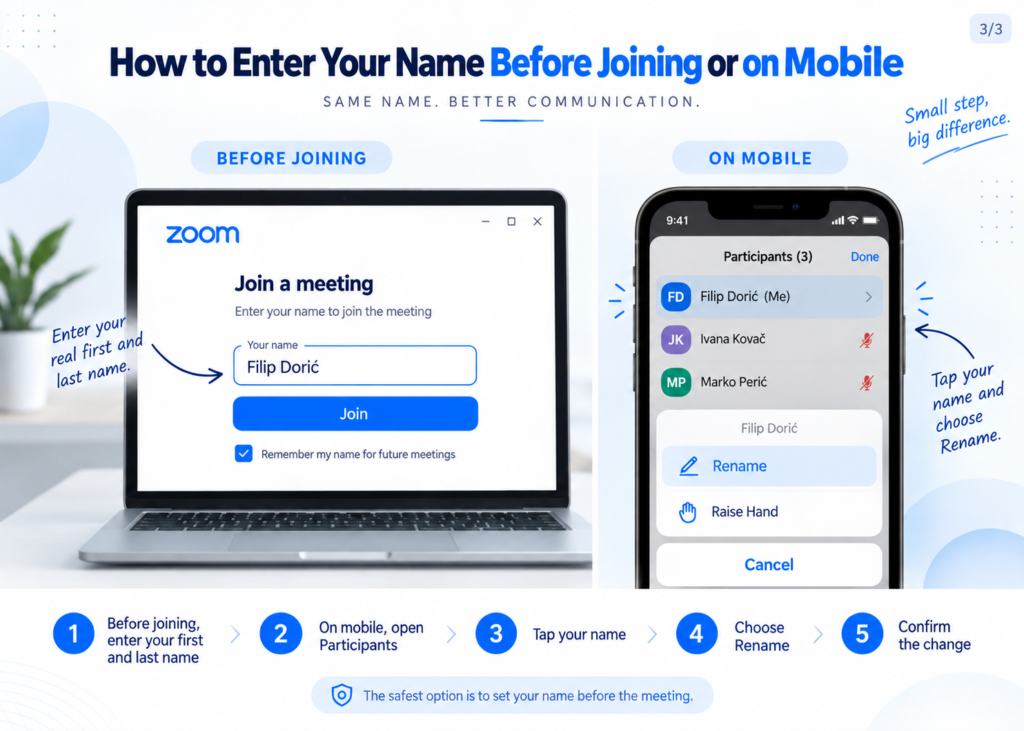
The same idea applies when joining from Android or iPhone.
Open the Zoom app and check the name shown before joining the meeting.
If Zoom is displaying an old nickname or the wrong name, update it before continuing.
This is especially useful if you regularly switch between personal calls, webinars and professional meetings.
Can You Change Your Zoom Display Name During a Meeting?
Usually, yes – if the host allows it.
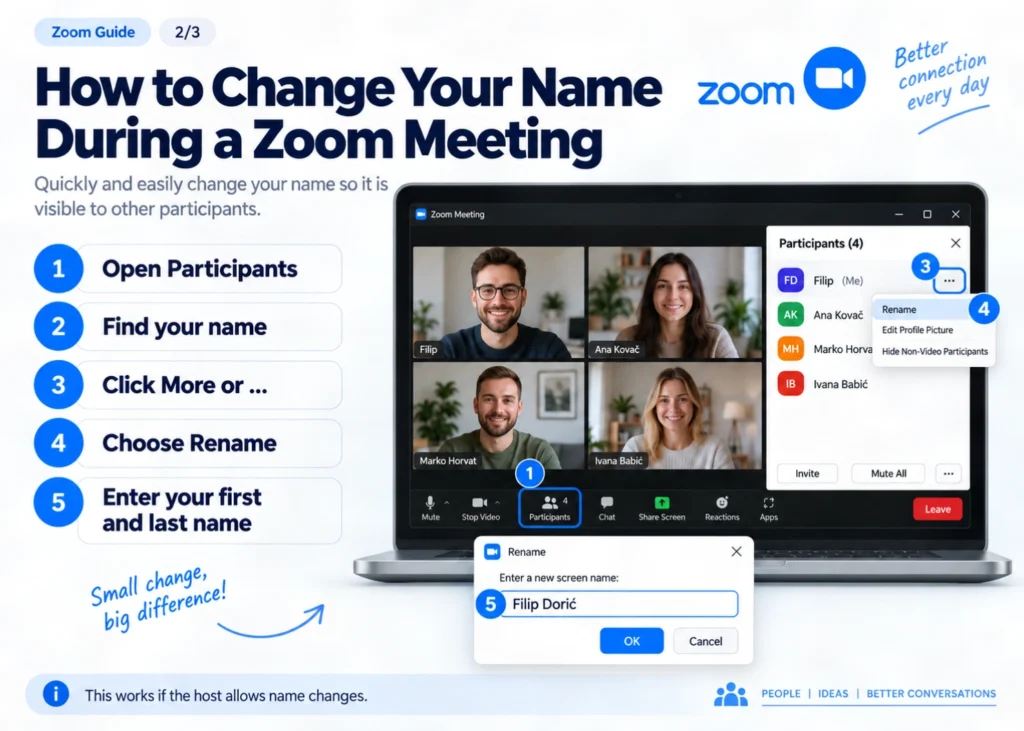
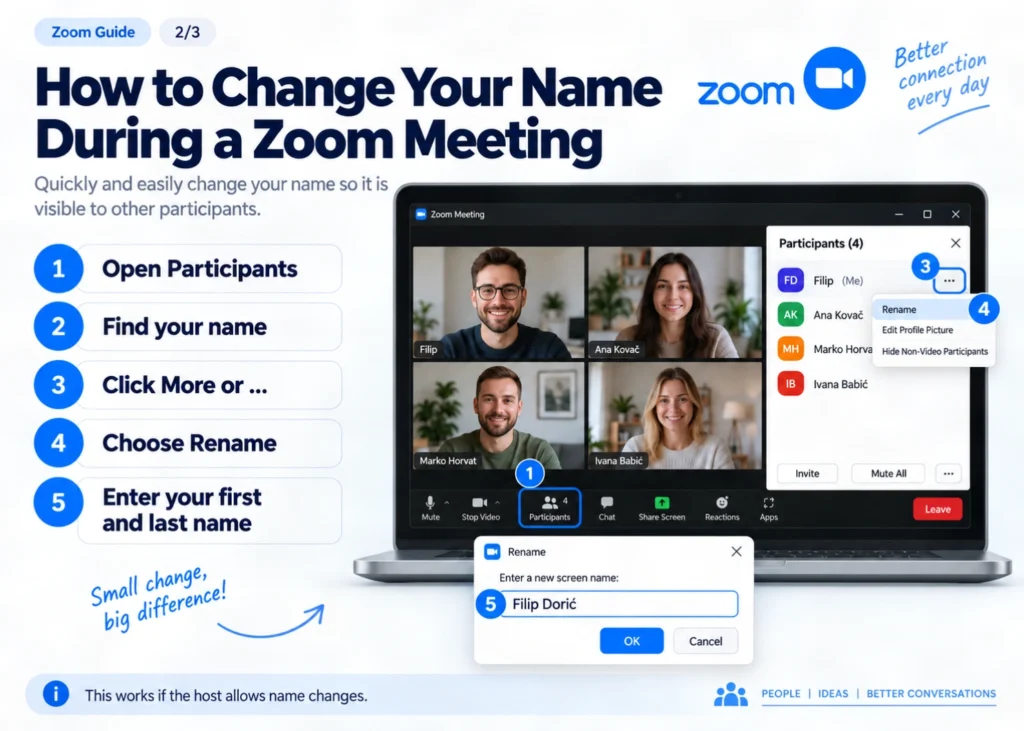
On desktop, open:
Participants
Find your name.
Click More or the three-dot menu.
Then select:
Rename
Enter the new Zoom display name and confirm it.
On mobile, the process is similar:
Participants → your name → Rename
There is one important limitation.
The meeting host can disable the option that allows participants to rename themselves.
If you cannot see Rename, that may be the reason.
So again, checking your name before joining is the safest option.
Why This Matters for Webinars
This becomes especially important when a webinar or online event has controlled access.
Imagine you registered as:
John Smith
But when you arrive, the organizer sees:
Samsung
How are they supposed to know it is you?
Or perhaps the participant list contains:
Peter77
Guest
Spider-Man
and several device names.
Funny?
Maybe.
Helpful to the organizer?
Not really.
If the host is checking registration names before allowing people into the meeting, your real name can make the process much smoother.
It is a very small form of online professionalism.
How to Change Your Zoom Display Name Permanently

If you use Zoom regularly, it makes sense to fix the problem once instead of checking it every time.
Sign in to your Zoom account and open your profile settings.
There you can edit information such as:
First Name
Last Name
and
Display Name
Your display name is the version that other Zoom users can see in meetings and webinars.
For example:
First Name: Filip
Last Name: Dorić
Display Name: Filip Dorić
Save the change and you have a cleaner default identity for future meetings.
Why Can’t I Find the Rename Option?
If you are already inside a meeting and cannot change your Zoom display name, it does not necessarily mean something is wrong with your app.
The host may have disabled participant renaming.
In that case, you can either ask the host for help or simply make sure you join correctly next time.
There is another good reason not to leave this until the last second: if an organizer is using a waiting room to identify participants, arriving with the correct name makes their job much easier.
A Small Detail That Makes Online Communication Easier
Zoom has a lot of features.
Screen sharing.
Recording.
Breakout rooms.
Chat.
Whiteboards.
Webinars.
But sometimes the question you need answered is much simpler:
What name will people actually see when I join?
For professional calls, my recommendation is straightforward.
Use your real first and last name.
Check your Zoom display name before entering.
And if you use Zoom regularly, update it permanently in your profile.
It takes less than a minute.
But when meetings involve clients, teams, webinars or people who have never met you before, that small detail makes online communication much clearer.
More Practical Digital Tips
On filipdoric.com, I write about digital tools, websites, online business, digital ecosystems and the small practical things that can make working online easier.
If you like simple guides without unnecessary complication, you can also join my newsletter and receive new articles as I publish them.
Small digital details can make a surprisingly big difference.
📬 Want more tips like this?
Subscribe to get fresh blog posts directly to your inbox.


